Datto Workplace API setup
Liscaragh Migrate reads from Datto Workplace over the Datto Workplace API. To connect, it needs four things: your Datto Workplace region, your cell number, and a Client ID and Secret from a Datto Workplace API integration. You set this up once per computer, and every job then shares it.
1. Find your region and cell
Both come straight from the web address you use for Datto Workplace, which looks like this:
https://eu.workplace.datto.com/2/api/v1
The region (domain) is the first part, for example eu.workplace.datto.com. The cell is the small number after it, 2 in this example. If the web address you use starts with "eu" pick the eu region, "us" pick us, and so on. If you are not sure, ask whoever set up your Datto Workplace account. Liscaragh Migrate lists the standard Datto Workplace regions for you to choose from, so you only type the cell number.
2. Create a Datto Workplace API integration
In the Datto Workplace admin portal, an API integration is created under Configuration, not somewhere you'd stumble on by accident. The exact steps:
-
Log in to Datto Workplace as an administrator
You need administrator access to your Datto Workplace account for this. If you are not an administrator, ask whoever manages your Datto Workplace to either do this step or grant you access.
-
Go to Configuration
Open the Configuration area of the admin portal.
-
Add integration
Choose Add integration.
-
Choose API
From the integration types on offer, choose API, then Add.
-
Name and describe it
Give the integration a name and description you'll recognise later, for example "Liscaragh Migrate" and a note of which migration it's for. Note the endpoint URL it shows you; this is where your region and cell (step 1 above) come from.
-
Reveal the ID and Secret, and Save
Reveal the ID and Secret values Datto Workplace has generated for the integration, copy both somewhere safe, then Save.
If your version of the Datto Workplace portal names any of this slightly differently, look for API access or API credentials under Configuration, or check Datto's own documentation.
Keys of the kingdom: treat the ID and Secret accordingly
The Client ID and Secret are a working credential the moment Datto Workplace generates them, not a formality to fill in later. Whoever holds them can read everything shared with the integration for as long as it exists. Never disclose them to anyone who does not need them, and never save them anywhere except Liscaragh Migrate itself: not in a shared document, wiki page, ticket, notes app, or password note visible to a wider team than needs it, and never by email or chat. See how we store your credentials for exactly how Liscaragh Migrate protects the copy it holds.
3. Share only the data you intend to migrate, read only
Creating an API integration does not, by itself, give it access to anything. In Datto Workplace, access is granted by sharing, exactly as if the integration were a person. Before you connect the tool, go into Datto Workplace and share the specific project (Team or Folder) you intend to migrate with the new integration, with read-only permission if that option is offered for the share.
Share only what this migration covers, not the whole account. If a later job needs a different Team or Folder, share that one too when you get to it. Narrowing what the integration can see, and keeping the share read-only, is worth doing even though the tool itself never writes back to Datto Workplace, because it limits what a leaked Client ID and Secret could expose.
4. Important security information
The Client ID and Secret together are a credential, not a formality. Whoever holds them can read everything that has been shared with the integration. Treat them with the same care as an administrator password:
- Never send them by email, chat or any other unencrypted channel.
- Never paste them into a shared document, wiki page or ticket.
- Never store them in a shared notes app or password note visible to a wider team than needs it.
Copy the Secret once, straight from Datto Workplace into Liscaragh Migrate, and let the tool hold the only working copy. See how we store your credentials for exactly what protects it once it's there. If you ever suspect it has been exposed, revoke the API integration in Datto Workplace and create a new one.
5. Enter it in the tool
In Liscaragh Migrate, open Settings > API settings and fill in the Datto Workplace section:
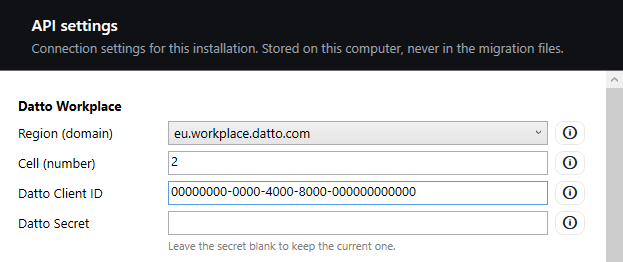
The Datto Workplace section of API settings.
-
Region (domain)
Choose your region from the list.
-
Cell (number)
Type the small number from your Datto Workplace web address.
-
Datto Workplace Client ID
Paste the Client ID from your API integration.
-
Datto Workplace Secret
Paste the Secret. It is encrypted at rest using Windows' own DPAPI protection, tied to your Windows user account, and is never written into any file the tool ships; see how we store your credentials for the full detail. Leave it blank later on if you only want to change other settings and keep the saved secret.
6. Test the connection
Click Test connection. When Datto Workplace is set up correctly it reports how many projects it can see.
If it fails, work through these in order:
- Re-check the region and cell against your Datto Workplace web address; a mismatched cell is the most common cause.
- Confirm the Client ID and Secret were copied in full, with no leading or trailing space.
- Confirm the API integration has not been deleted or disabled in the Datto Workplace admin portal.
If the connection succeeds but reports zero projects, the credentials are working correctly: the integration simply has not been shared with any Team or Folder yet. Go back to Datto Workplace and share the Team or Folder you intend to migrate with it, as described above, then test again.
Once it reports the projects you expect, click Save.
That is the Datto Workplace side done. If you have not yet connected the destination, continue with the Microsoft 365 setup. To start migrating, see the Datto Workplace how-to.