
Running a large migration without anyone in the office noticing
Large Microsoft 365 migrations rarely happen in an empty building. While files are being copied, people are still making Teams calls, uploading documents and working as normal. If the migration is allowed to consume every bit of available bandwidth, someone will notice, and usually before the migration finishes.
The good news is that this is entirely avoidable. A well-planned migration should work around the office, not the other way round.
Two different limits that solve two different problems
There are two controls involved in keeping a migration running smoothly, and they are often confused.
A bandwidth cap is a limit you choose. If a client has a 50 Mb/s upload connection, you might limit the migration to 20 Mb/s so the remaining capacity stays available for everyday work. The migration will never exceed that limit, regardless of how quickly Microsoft 365 could otherwise accept data.
An automatic throttle handler solves a different problem. Microsoft 365 will occasionally ask applications to slow down when a service is busy. Liscaragh Migrate detects those signals automatically, reduces the number of simultaneous uploads, and gradually increases activity again once the service allows it.
One protects the office from the migration. The other protects the migration from Microsoft 365. For most daytime migrations, both should be enabled.
Schedule work for when nobody needs the bandwidth
The simplest way to avoid disrupting users is not to migrate while they are working.
A migration can be scheduled to start at a specific time, such as 22:00, or restricted to a nightly window such as 22:00 until 06:00. During the first window the initial upload runs as normal. Each following window automatically resumes the migration using a Sync until every file has been transferred.
This allows large migrations to progress over several nights without anyone needing to restart the job each morning.
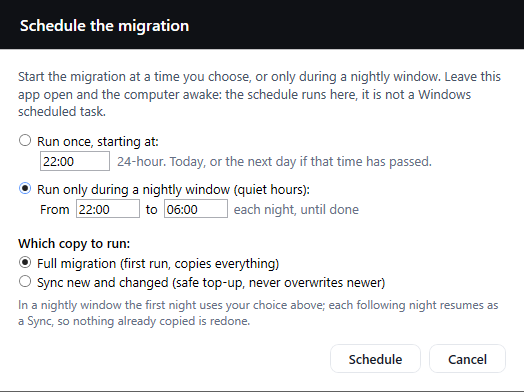
Scheduling a nightly window, from 22:00 until 06:00.
The scheduler stays inside the application
The scheduler is built into Liscaragh Migrate rather than Windows.
That means the application must remain open, the computer must stay powered on, and sleep or hibernation must be disabled. Treat the first overnight run as one to check the following morning rather than assuming everything completed perfectly.
What happens when the window closes?
A scheduled window will not always finish neatly between files.
When the end of the window is reached, the migration stops safely in exactly the same way as if you had selected Stop yourself. Files that have already completed remain at the destination, partially transferred files are handled safely, and the job is left ready to continue when the next scheduled window opens.
Nothing is deleted, nothing is copied twice unnecessarily, and nothing needs repairing before the next run.
Built for overnight migrations
Set a bandwidth cap once, choose an overnight schedule, and let the migration work around the organisation instead of interrupting it. Liscaragh Migrate automatically adapts to Microsoft 365 service limits, pauses cleanly when the scheduled window ends, and resumes exactly where it left off the next time it runs. See API throttling and bandwidth limits for how the pacing actually works.
Why Sync makes overnight scheduling reliable
The reason overnight scheduling works so well is that Sync compares the source with the live destination each time it runs.
It does not depend on remembering what happened the previous night. Whether the earlier run finished normally, was interrupted by a reboot, lost its internet connection or simply reached the end of its scheduled window, Sync checks what is actually present in Microsoft 365 before transferring anything else.
By default, it copies only files that are not already present. Existing files at the destination are left untouched, so changes made directly in SharePoint or OneDrive are not overwritten.
This approach makes overnight migrations both efficient and resilient, because every new session begins from the current state of the destination rather than assumptions about the last one.
Before you schedule an overnight run
- Set a suitable bandwidth cap. If the migration may overlap with working hours, reserve enough bandwidth for normal office activity. Automatic throttle handling complements a bandwidth cap; it does not replace one.
- Keep the migration computer awake. Disable sleep and hibernation, leave the application running, and ensure the machine will remain powered on throughout the scheduled window.
- Check available Microsoft 365 storage. Confirm there is enough free capacity in SharePoint Online or OneDrive before leaving a large migration unattended.
- Start with a full Upload. Use Upload all files for the initial migration. Reserve Sync new and changed for subsequent runs or to continue an existing migration.
- Review the first overnight run. The scheduler is designed to run unattended, but the first scheduled migration should always be checked the following morning to confirm everything performed as expected.
- Wait for the job to finish completely. A scheduled pause is not the end of the migration. Only consider the project complete when the job status confirms that every file has been processed successfully.
Large migrations do not need constant supervision. With sensible bandwidth limits, automatic handling of Microsoft 365 throttling and a scheduled overnight window, they can progress quietly in the background while the organisation continues working normally, and pick up again each night until the job is complete.